
MAKE AN APPOINTMENT BY PHONE
- Call the office where you would like to receive care.
- Scheduling is available Monday – Friday during normal business hours.
- Please have your insurance information on hand when scheduling your appointment.
Make An Appointment in MyChart
Online appointment scheduling is determined by each clinic office for specific appointment types and for physicians or advanced practice practitioners you have already seen. If your clinic offers online scheduling, follow the instructions below.
- Log into your Oregon Clinic MyChart and select the Schedule an Appointment button.
- Follow the steps on each screen to select a provider, appointment type, time, and location (in-person or virtual).
- Click the “Schedule it” button to book your spot.
Find additional step-by-step instructions below. For technical assistance, please call the MyChart Help Desk at 1-833-395-2035.
Open MyChart and sign in.
Click on the ‘Schedule an Appointment’ button.
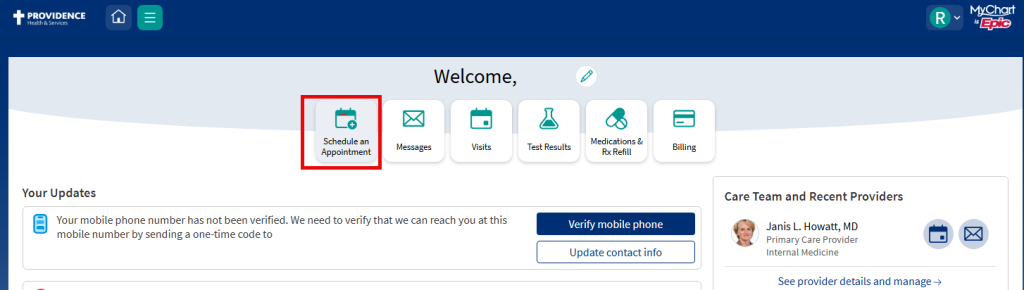
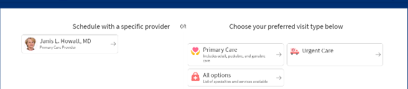
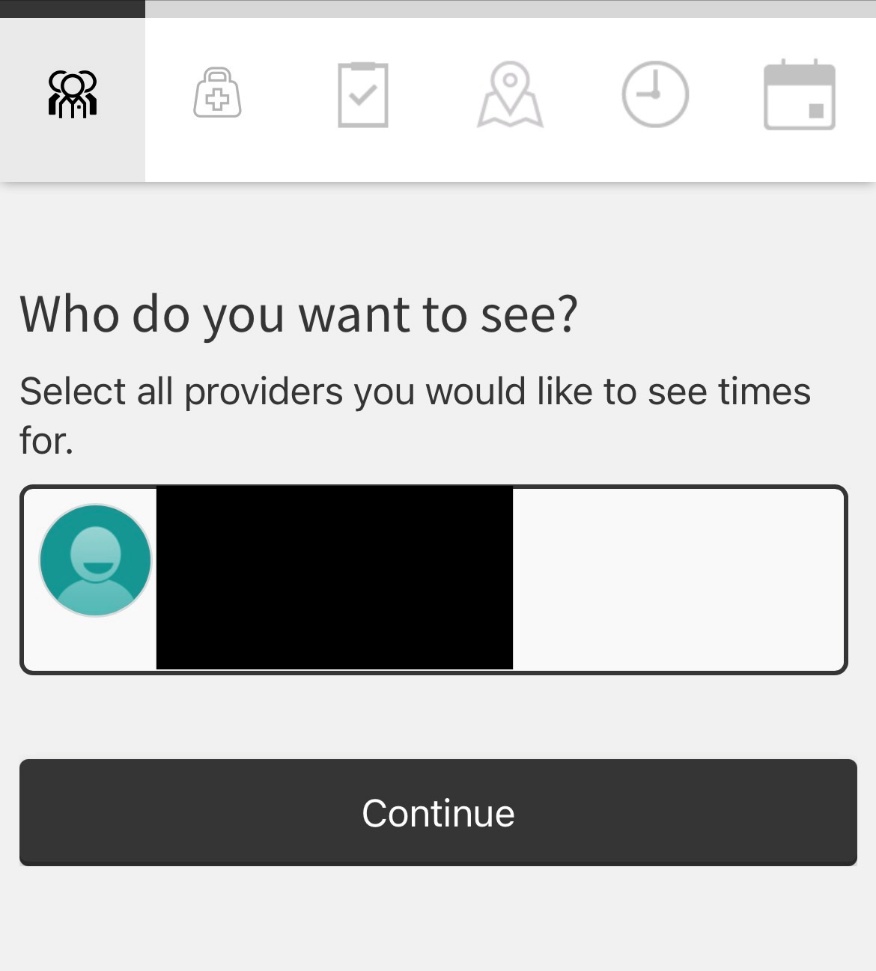
Start by selecting a provider in the ‘Schedule with a specific provider‘ section.
You will only see providers you’ve seen before.
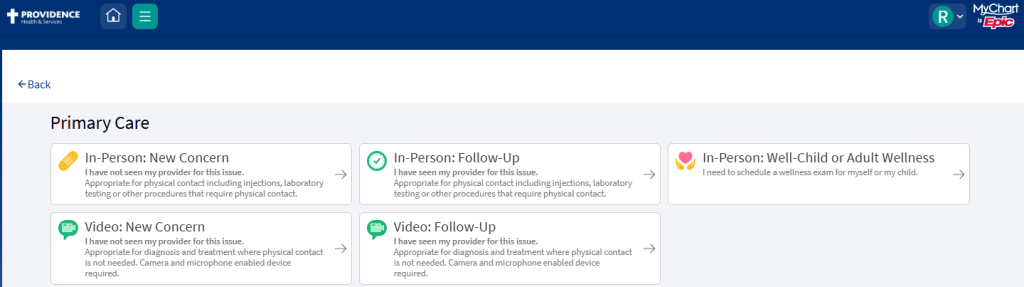
Select the type of appointment you want to make with your provider.
You will only see options available for your provider.
Some areas of care such as Physical Therapy only offer In-Person visits.
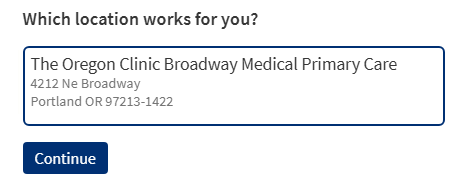
For an office visit, choose your preferred location.
Some providers only work at certain locations.
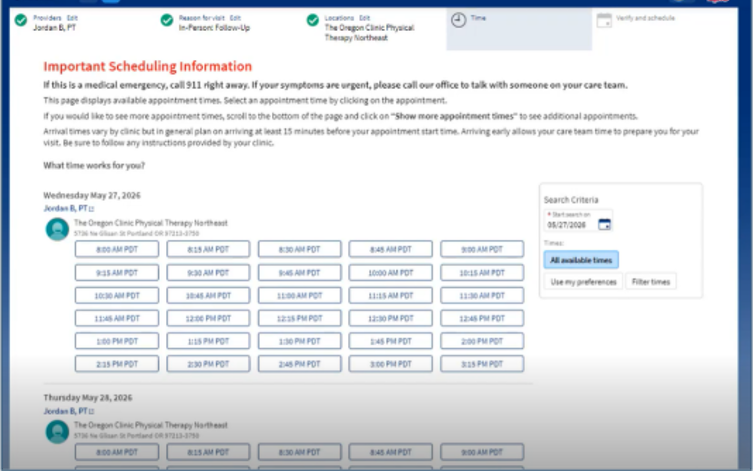
Select a date and time for your appointment from the available time slots.
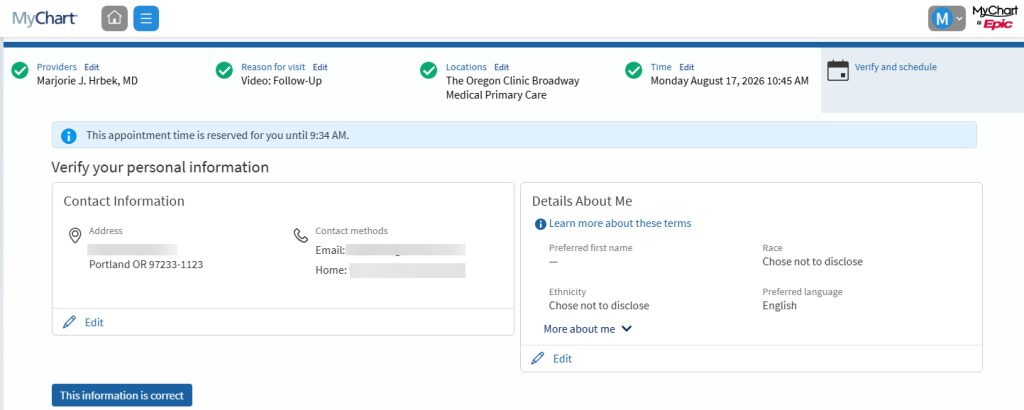
Verify your personal information. Make updates if needed and/or select ‘This information is correct’ to proceed.
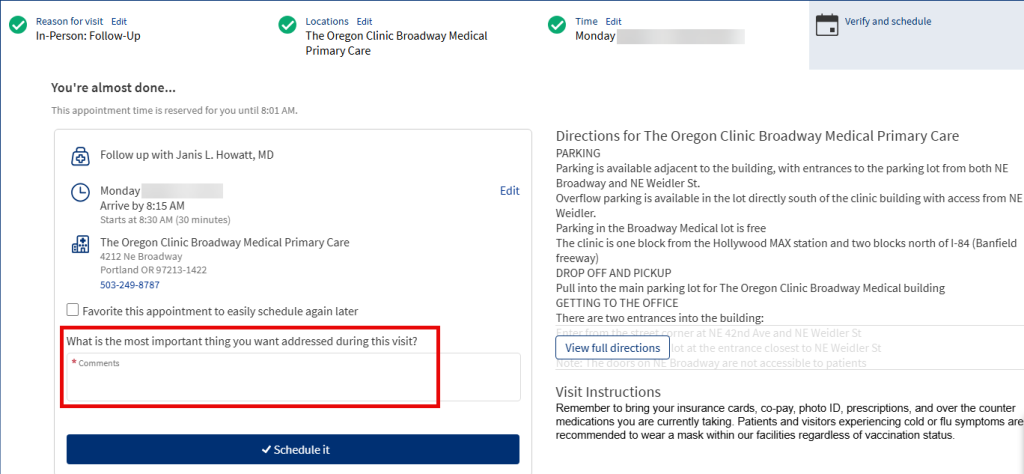
To finalize your appointment, add a comment about what you want to address during the visit.
Make sure to tap ‘Schedule it’ to finish making your appointment.
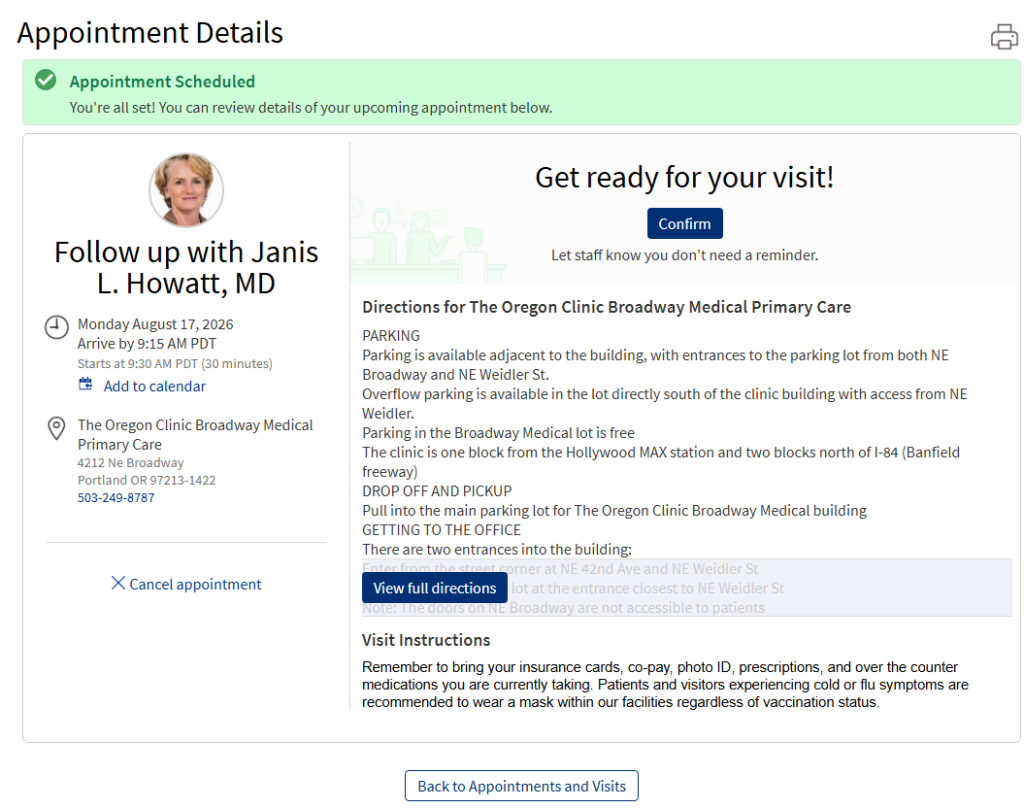
Review your appointment summary. If available, you can join an appointment wait list at this step. Tap the box next to “Notify me if an earlier appointment opens up”.
Open MyChart and sign in.
Click on the ‘Schedule an Appointment’ button.
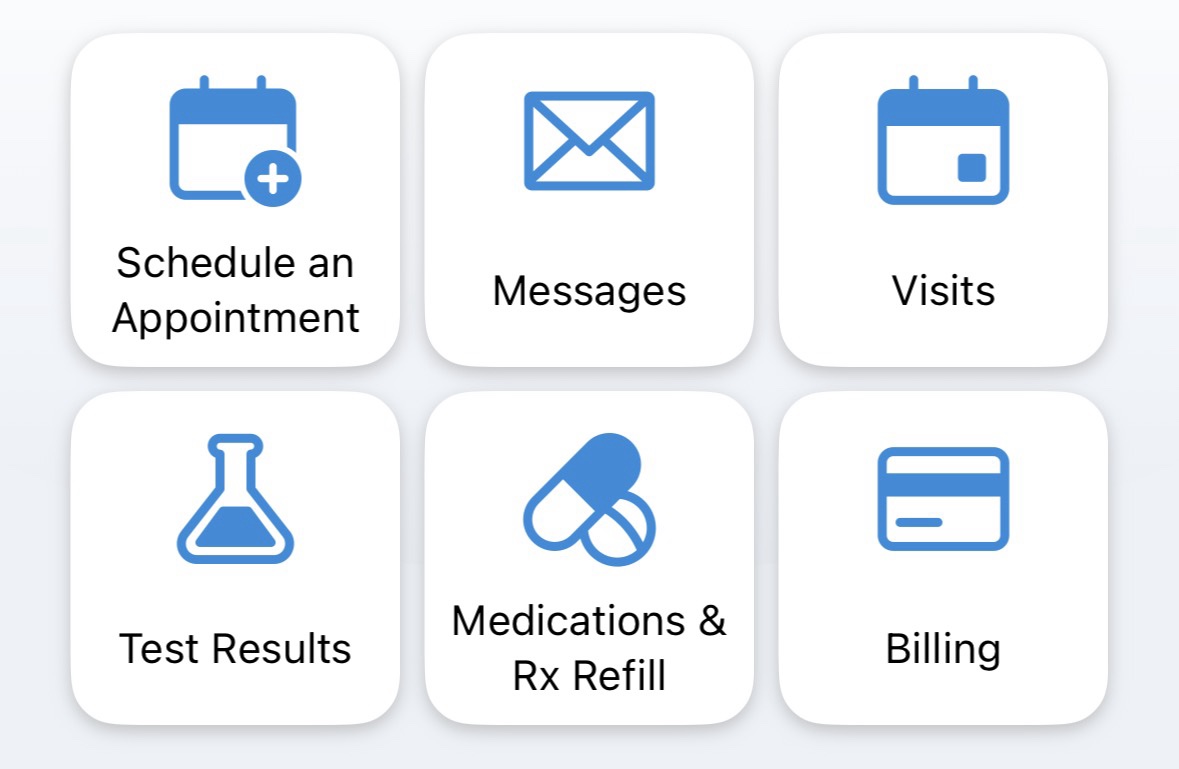
Start by selecting a provider in the ‘Schedule with a specific provider‘ section.
You will only see providers you’ve seen before.
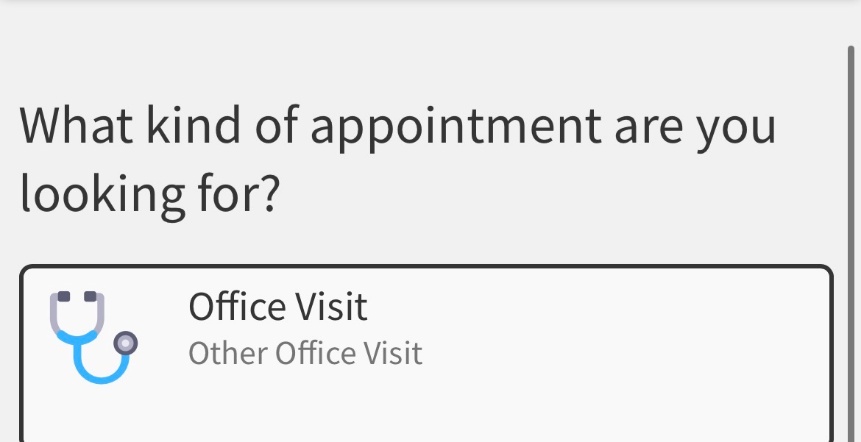
Select the type of appointment you want to make with your provider.
You will only see options available for your provider.
Some areas of care such as Physical Therapy only offer In-Person visits.
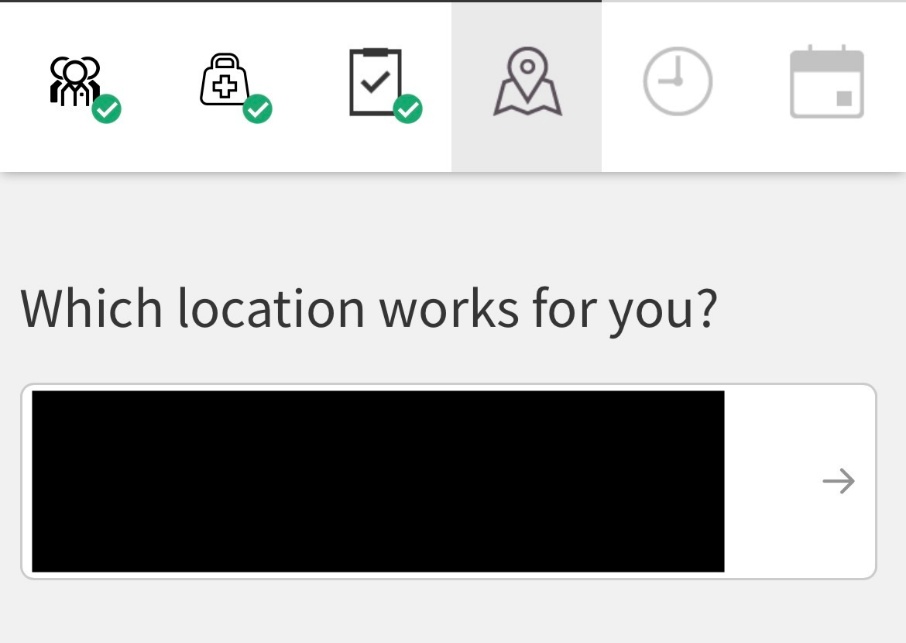
For an office visit, choose your preferred location.
Some providers only work at certain locations.
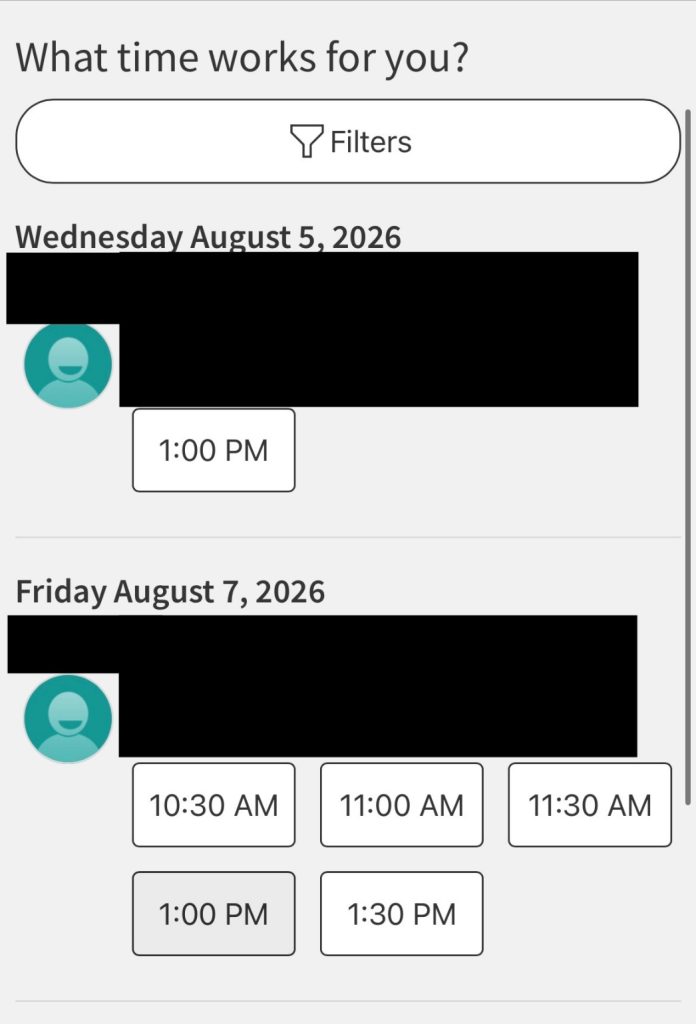
Select a date and time for your appointment from the available time slots or use filters to narrow the options.
Verify your personal information. Make updates if needed and/or select ‘This information is correct’ to proceed.
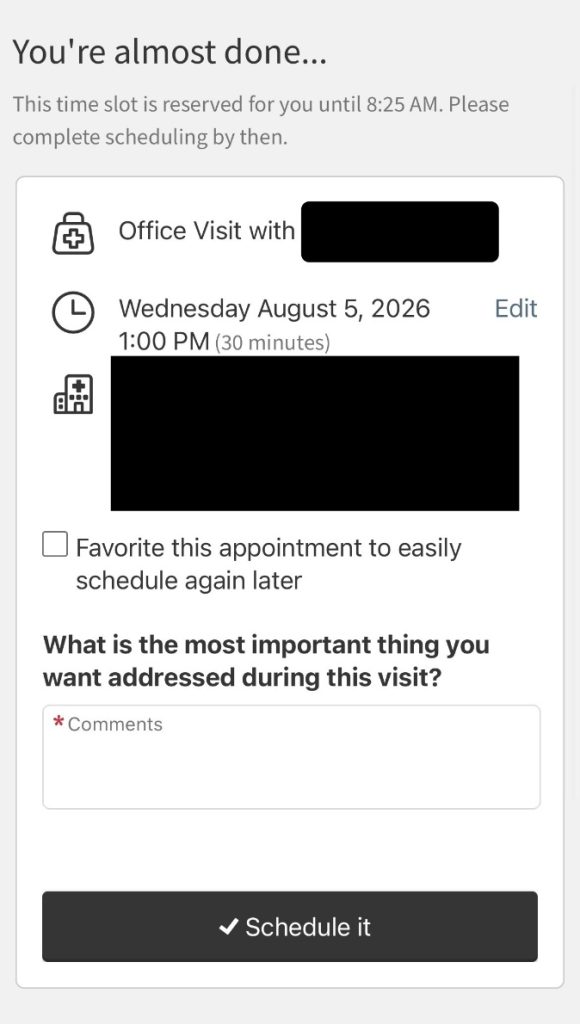
To finalize your appointment, add a comment about what you want to address during the visit.
Make sure to tap ‘Schedule it’ to finish making your appointment.
If available, you can join an appointment wait list at this step. Tap the box next to “Notify me if an earlier appointment opens up”.
Appointment Waitlists at The Oregon Clinic
Appointment waitlists are determined by each clinic office for specific appointment types. If a waitlist is not offered at the time you schedule, you are always welcome to ask if one is available.
When you join a waitlist for your scheduled appointment, there are two ways you could be notified of an earlier appointment. A clinic team member will reach out to you, or you will receive a MyChart waitlist offer through your MyChart notifications.
If an earlier appointment becomes available that matches your appointment criteria, you will receive a MyChart waitlist offer with the new date and time available. You can choose to accept the new time or keep your existing appointment. If you do not accept the waitlist offer, you will keep your existing appointment.
MyChart waitlist offers expire after 12 hours and are first come, first served. If you do not respond quickly, the slot will be offered to another patient and you will remain on the waitlist for future openings. Push notifications must be enabled in MyChart notifications.
Yes. When you accept a MyChart waitlist offer, your original appointment will be canceled and replaced with the new time slot. If you decline or do not respond, your original appointment stays unchanged.